Taking action… at the first signs of smoke

Made-a-move #17: Taking action and being more proactive

My usual mode-of-operation tends to be one of ‘fly by the seat of my pants’ at the last minute.  It all gets done, though often with a flurry of activity at the finish line.  Always focusing on the fire at hand.  Don’t get me wrong – I still do that, but there were some glimmers of a more mature and sane way of living that came through this week ;)

This week my move was to be more proactive rather than wait until a full-fledged fire was in need of putting out before asking for help.  Totally contrary to my personality, I actually let people know that I needed extra help when I realized I was going to be short handed and when I was too weak to do some necessary grocery shopping.  (I usually would push myself to do it anyways).  With a very sudden bladder infection, I called for medical help first thing in the morning and went to see a doctor before going in to work.  Granted I am still myself – I did work every day and ended up sick during the weekend… but, even then I broke out of my constant buzz of activity and stayed laying down most of 2 days to recover. 

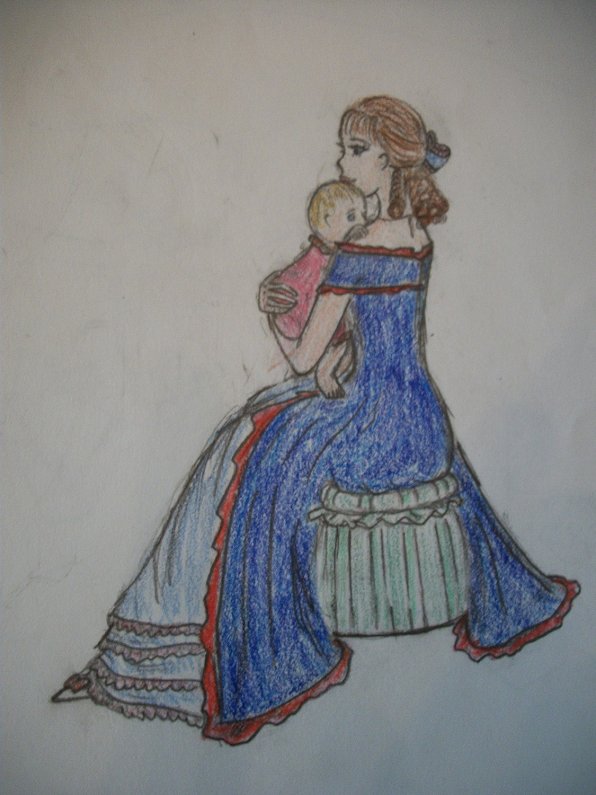
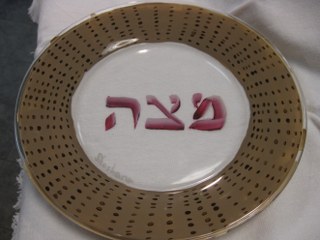
And I took notes throughout the week putting thoughts together for a speech I am not even giving for another week yet!  I finished writing the speech!  But, that will be for another posting.  As a hint, here is a picture my DD made that captures a bit of the subject matter:

Artwork by Shoshana

Have a great and successful week!

- DebBee


Moving Forward with Charm(s)

Made-a-move #16

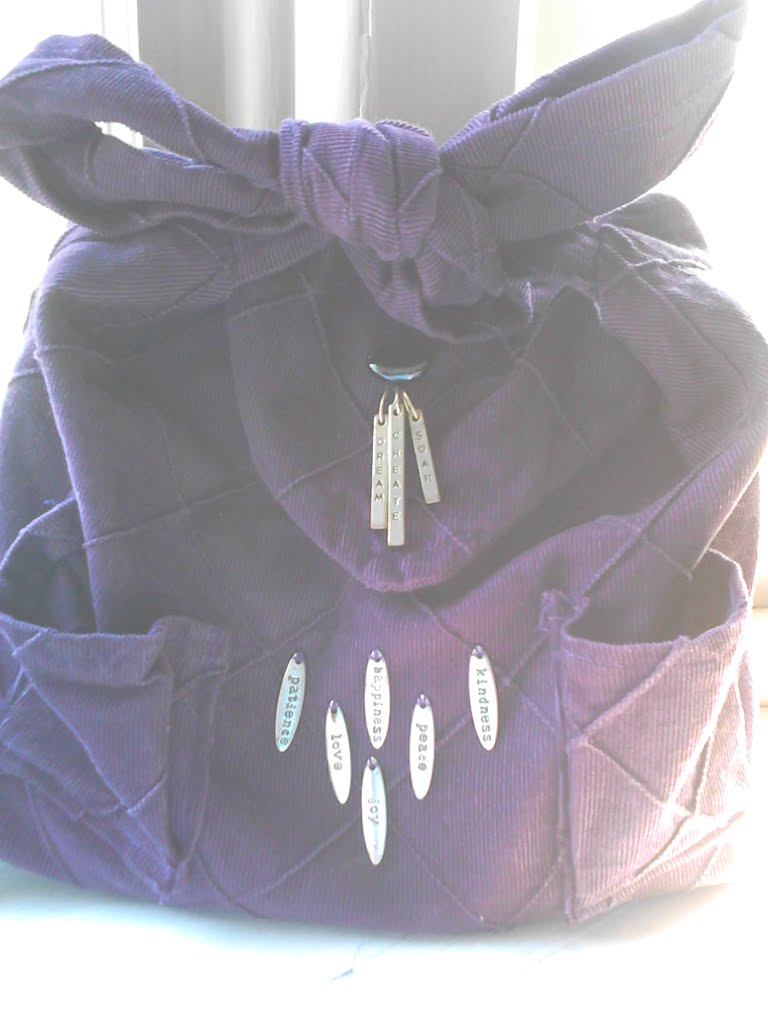
This week was filled with lots of accomplishments.  But, as far as a tangible thing I can point to and know that I am continuing to move forward for myself, as well as for others, I have added charm… or rather charms to my purse.   I fell in love with the charms and bought them several years ago, seeing their messages representing the qualities I have valued in myself (patience, happiness, kindness, love, peace and joy) and wanting the tangible reminders of these qualities as I sought to move forward in the direction of following my drive to Dream, Create and Soar.   Up until now, I had not found a good way to carry the charms with me.  Now (or at least until I get tired of carrying a purple purse ;) ) I have them securely attached wherever I go.  A point of stability.  A non-electronic GPS so I don’t get so lost again.  A reminder of who I am as I step out of my comfort zone to embark on new journeys of further personal growth.

Move along with me with Made-a-move Mondays.

Much continued growth and success to you in your journeys!

- DebBee

Drop-Down Menus!!

Made-a-move #15

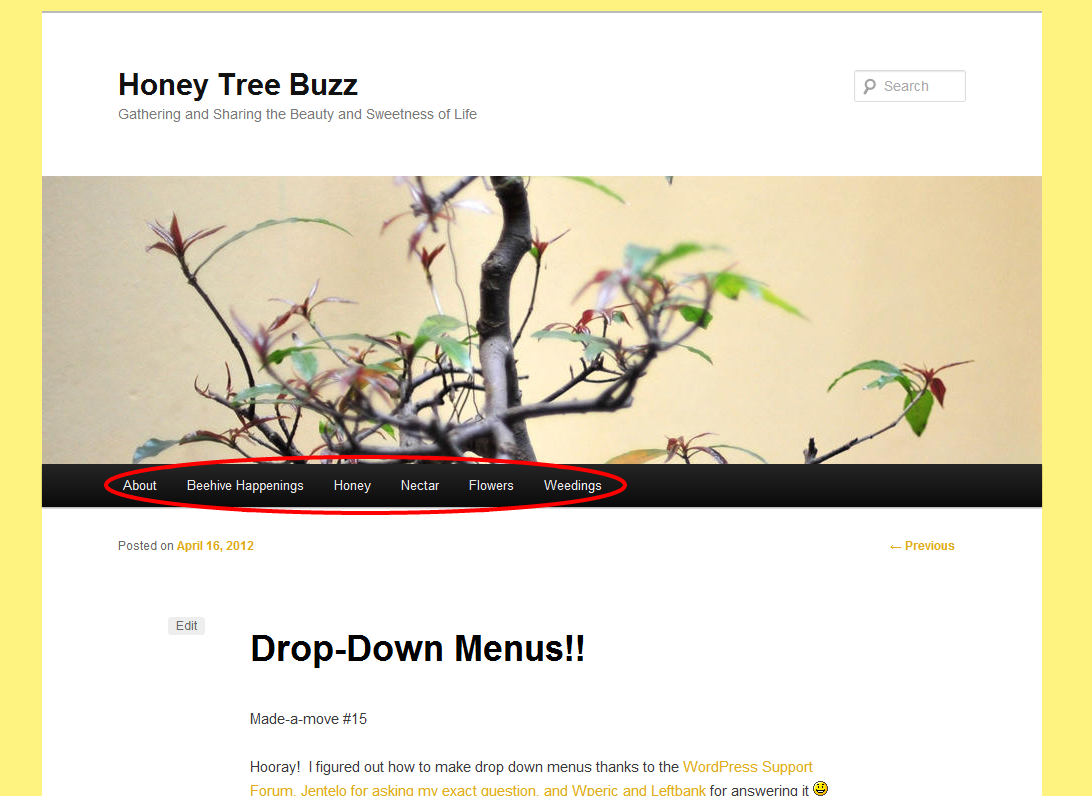
Hooray!  I figured out how to make drop down menus thanks to the WordPress Support Forum, Jentelo for asking my exact question, and wperic and leftbank for answering it :)

My crazy menu titles now have meaning when “moused-over” :)
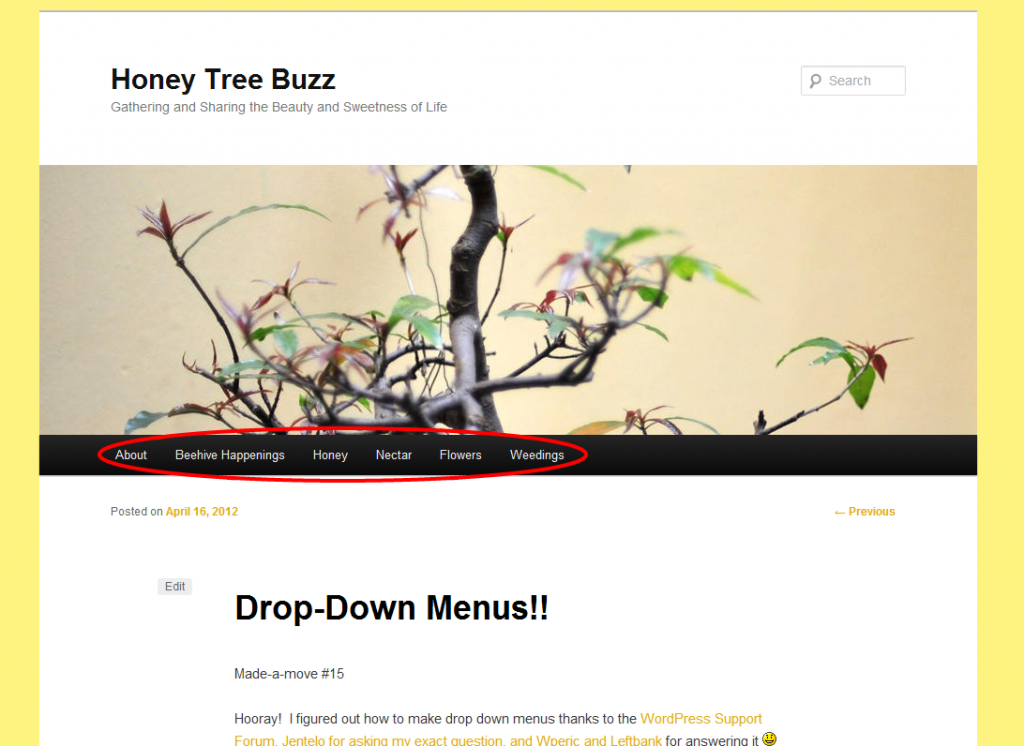
If you are just starting out, here’s how – or at least how I did it:

First off,  I am using the WordPress theme Twenty Eleven.  I don’t know what the different layouts may be if you are using a different WordPress theme.

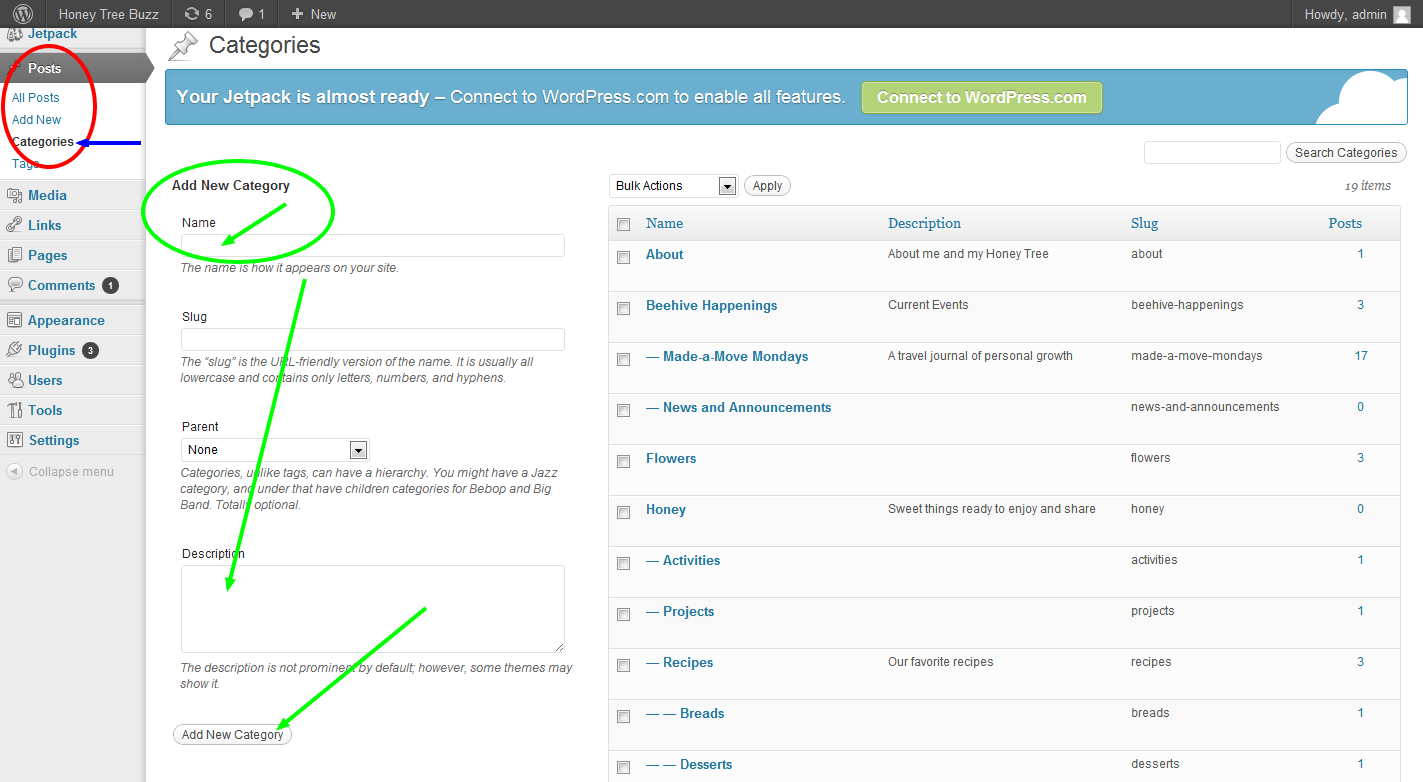
When I decided to set up my blog, I had ideas of what content I wanted to include and an outline of how I would organize the content.  So, I first set up the different categories that my postings would fit into.  As I make a posting, I label it with the category I already have set up.  Accessing “Categories” is found in the “Posts” option in the WordPress left sidebar of the admin control pages.  Once on the Categories page, setting up your categories is as easy as inputting the Name, a description (optional), and press “Add new Category” – see green arrows below:
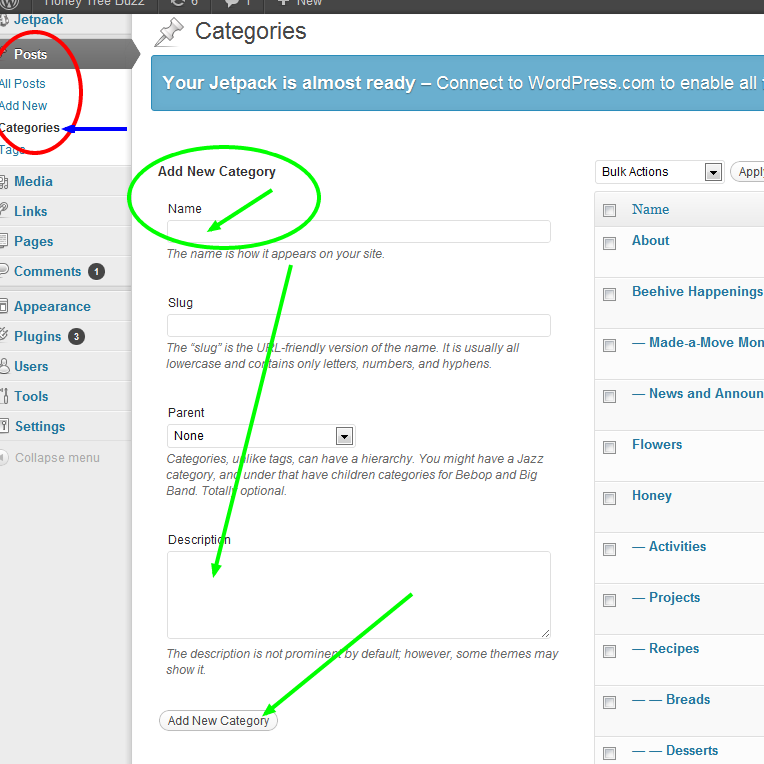
If you input your main categories first, you can later assign the other categories you set up as being subcategories to a “Parent” while you are inputting them by clicking the “Parent” drop-down before clicking “Add New Category”.  You can always assign or change the categories later by going to the Categories page in the Posts sidebar option and Edit the one(s) you want to.

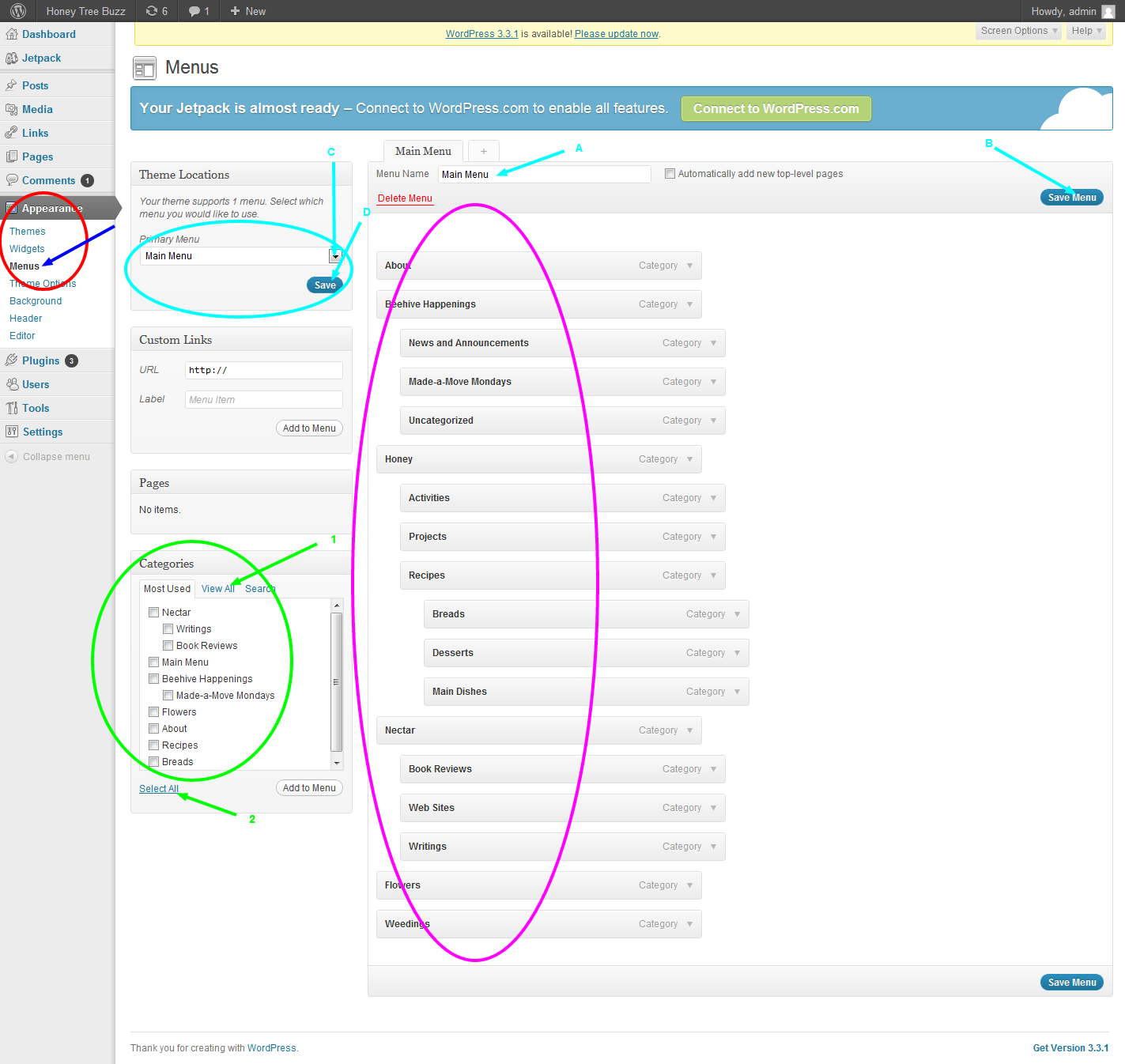
Having categories for your posts is not the same as having menu titles across the top of your page yet.  To set up your menu bar, look at the sidebar  and find “Appearance”.  In the Appearance options, go to Menus (red circle below.)

At the blue arrows below, input A the menu title (you can create different menus, but WP Twenty Eleven theme only has one location for a customized menu so you will only use 1 menu at a time); B save the menu title, C choose the menu you want to use, and D click Save.  You now have a menu – next to add the Menu titles.

Towards the bottom of the Menu page are the categories that are set up.  The default is to show the Most Used, but clicking the View All (green arrow 1) is more useful.  You can pick-and-choose the categories you want in your menu or you can choose to Select All (green arrow 2).  Next, click Add to Menu – this will make them show up in the menu list shown below in the purple circle.  At this point they will be all aligned along the left edge of the menu list.  Be sure to Save Menu by clicking the button in the bottom right!
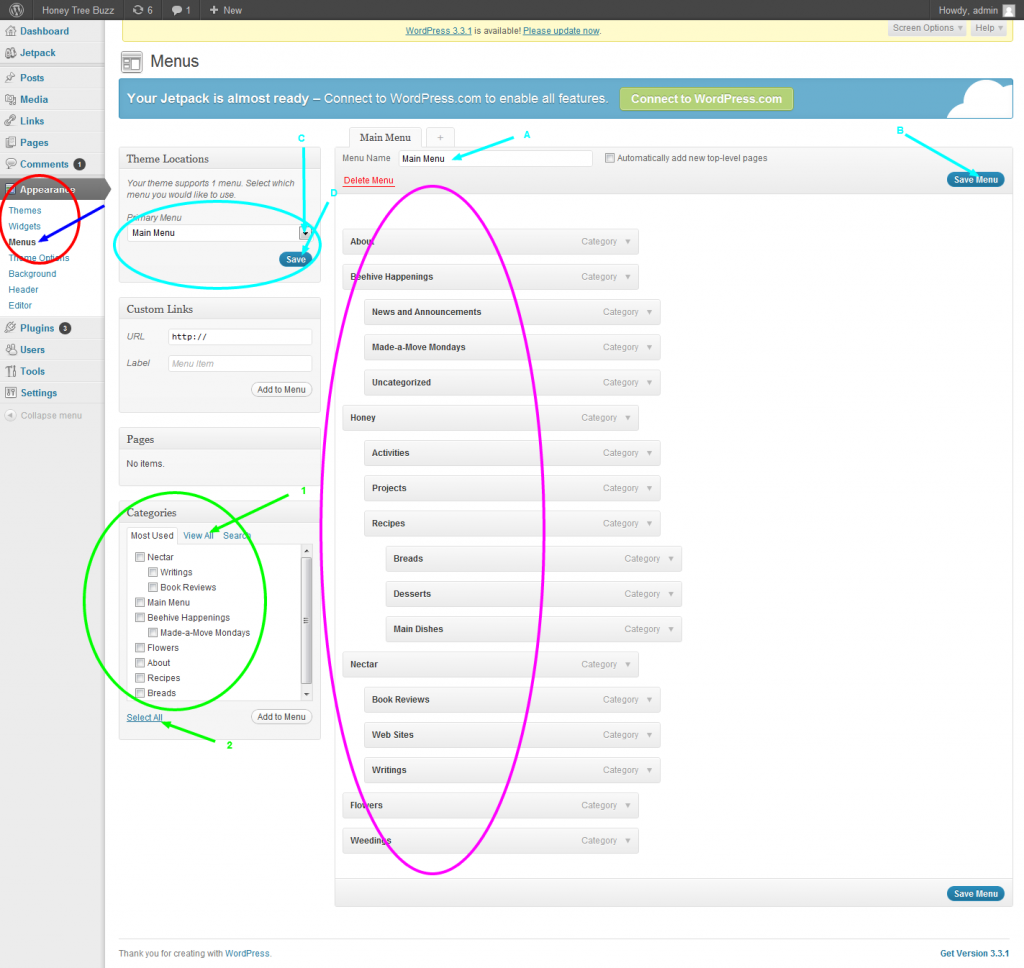
Rather than having so many menu items across your menu bar, you can make some of them be sub-topics that will show up as drop-down when mousing-over the “parent” categories that will be in the menu bar.  To do this, drag and drop the sub-menu item below, and slightly to the right, under the menu topic you want it to be in.  The final look is what you see in the purple circle above.  Be sure to click Save Menu (bottom right) when you are done!

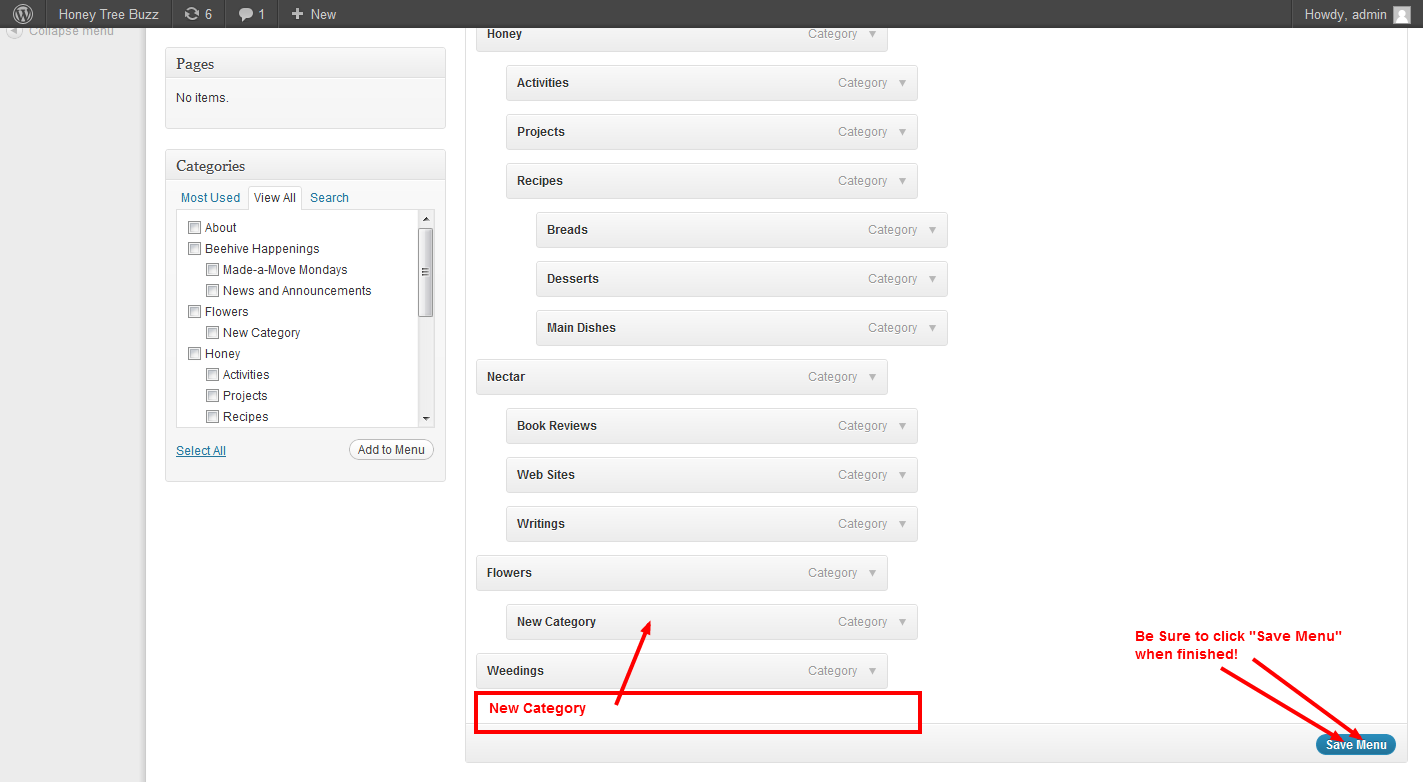
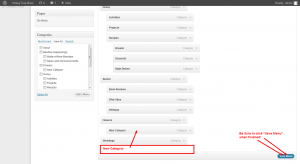
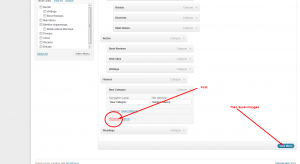
At any time in the development of your blog you can add additional categories using the same process above.  Under Posts, go to Categories and add the New Category.  Then, under Appearance, go to Menus and, in the View All listing, click the category you want to add to your menu (see left image below).  When you click Add to Menu, it will add it (where the green arrow points) at the end of the menu list.  Simply drag-an-drop it to where you want it to go (right image below). Again, be sure to Save Menu when finished.


But, there’s more…

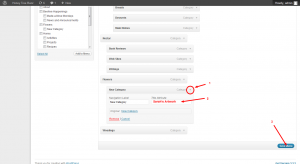
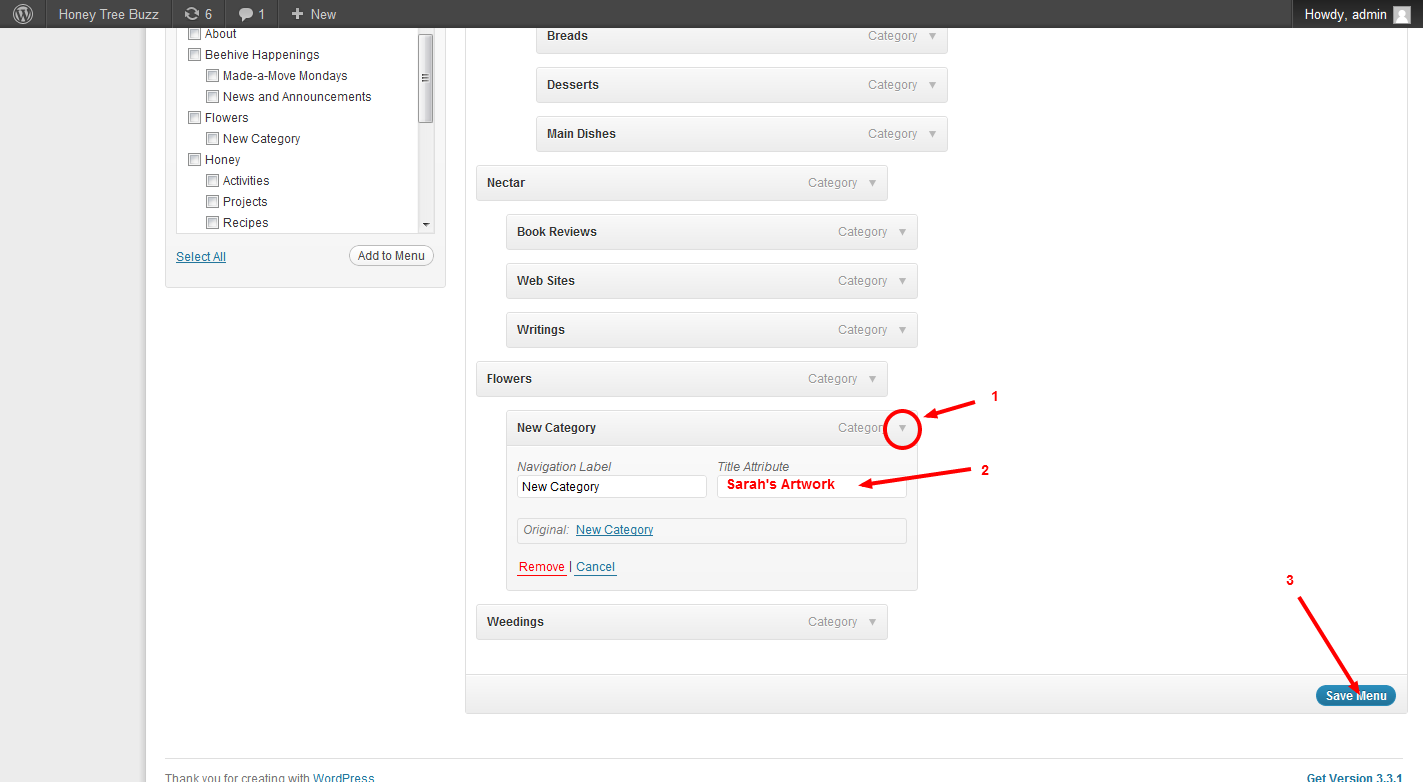
You also have the option to add descriptions of your menu item that will be visible when the mouse lingers over that item.  To do this, click the little arrow next to the menu category (point 1 in red circle) and then type the descriptive Title Attribute in box at the arrow 2.  Be sure to Save Menu when finished (arrow 3)

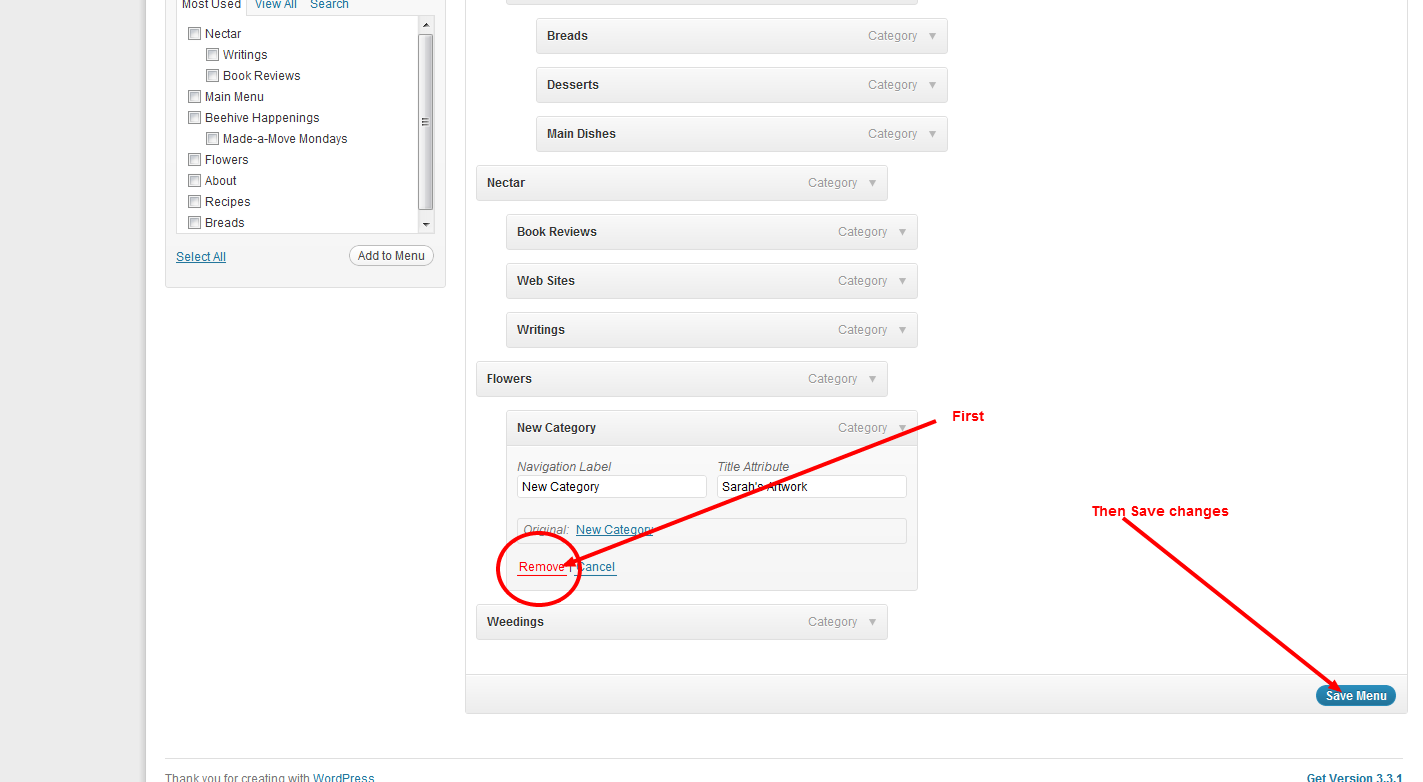
If you later decide to get rid of a category in your menu, you can do that through that menu item’s Category drop down arrow (see below).
If rather than just deleting the menu item, you choose to delete a category all together on the Categories page, any postings you had in that category that do not have any other labels would be transferred to “Uncatagorized”.

Thank you for coming to my HoneyTree Buzz Blog – much success to you in the growth of yours!

- DebBee

Leaving Slavery

Made-a-move #14

Artwork by Shoshana

My move for this week has been preparing for and celebrating Passover with my family – a holiday that commemorates the Jewish people leaving the slavery of Egypt to be free to fulfill our purposes in this world.  The participation and help of all of my family has been immense, each in their own way, and greatly appreciated!

The special Passover “Seder” meal the first night(s) of Passover are filled with symbolic items and actions that help us walk through the history of our people’s experiences as being slaves, of crying out to The Creator for help, and His rescuing us and bringing us to freedom.  As is said during the seder, “In every generation, a person is obligated to regard himself as though he had come out of Egypt… It was not only our ancestors whom the L-rd redeemed from Egypt, but He redeemed us with them as well.”   The symbolism presented on the table in front of us during the meal (and all of the hard work preparing for the holiday) set the stage, but to truly feel the redemption, we need introspection.

Artwork by Shoshana

So often we feel like we are “A rose among thorns.”  That harsh conditions around us limit our freedom.  Passover is a time to look inside ourselves and realize how much we are “a slave to ourselves.”  I’ve heard that in the process of training elephants, the baby elephants were chained, at their ankle, to a post when young.  As they grew big, they could easily have escaped the chains through their great strength, but didn’t even try out of memory of not being able to when they tried in their youth.  How much are we held back by our perceptions of our limitations?  Are the thorns really there?  Maybe yes, and maybe no.  Either way we need to realize that there is a way to get past them, blossom to our full potential, and share our beautiful contributions with the world around us.  We need to not allow past experiences blind us to the possibilities now and in the future.

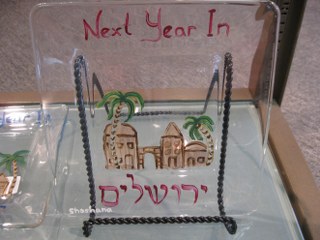
Artwork by Shoshana

As we conclude the Seder with the words “Next Year in Jerusalem”, it is my heartfelt wish that this be a year that we break out of the confined image we have ourselves.  That we realize that we can call out to, and tap into, the infinite strength of The Creator.  That we recognize the incredible potential we have within ourselves.  And, that we can live fulfilling our purpose in this world – be that in Jerusalem, in our world, in our communities, in our family, in our jobs, or, and most importantly, in ourselves.

Health, strength, happiness, and success to you in all of your worthwhile endeavors!

- DebBee

Multiple Image re-sizing

Made-a-move #13


As I have been doing more and more with putting images on the web, I’m learning the importance of resizing images.  I’m getting better at it, but it has been tedious for the quantity of images I’d love to put up – especially with adding images to my DD’s online artistic portfolio and my aspirations of posting online demonstrations.

Not wanting to let my lack of training [college education in occupational therapy didn't exactly cover this area ;) ]  to hold me back, I did a little searching and found a great freeware program for resizing multiple images: Fast Image Resizer Thanks to SimpleHelp.net for the info and cnet.com for the confirmation that it is a good (and safe) program.

Resizing a batch of pictures was as simple as selecting them in their folder and drag-drop a copy of them to the resizer – it automatically set up a ‘resized’ folder for them and resized them in seconds.  Wow!  Online picture stories and tutorials, here I come!